1
Install Extension
Search and install Telegram Media Downloader from your browser extension store
Tips:
- Search for "Telegram Media Downloader" in the store
- Click "Add to Chrome" or "Install" button
- Wait for the installation to complete
2
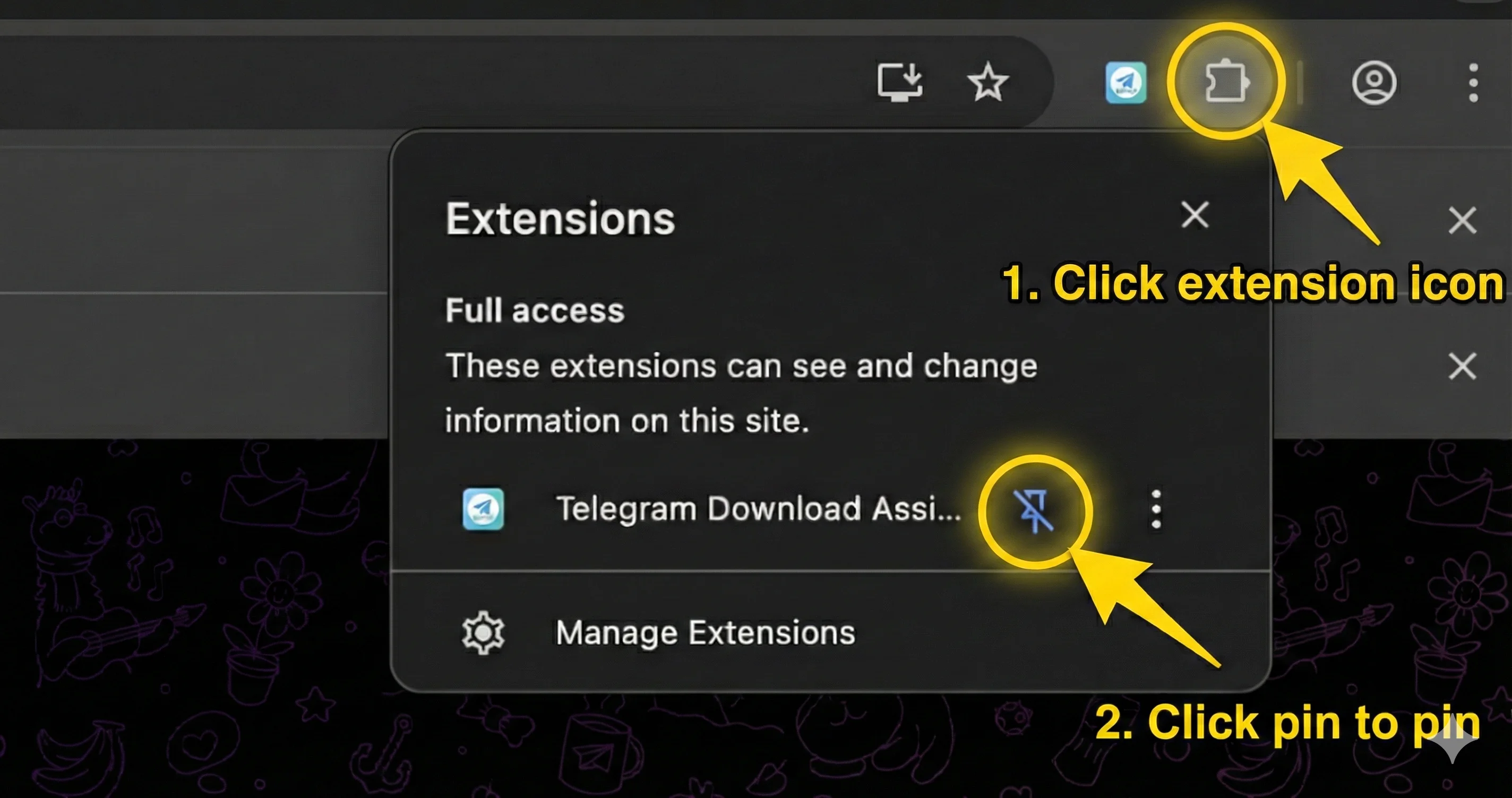
Pin Extension
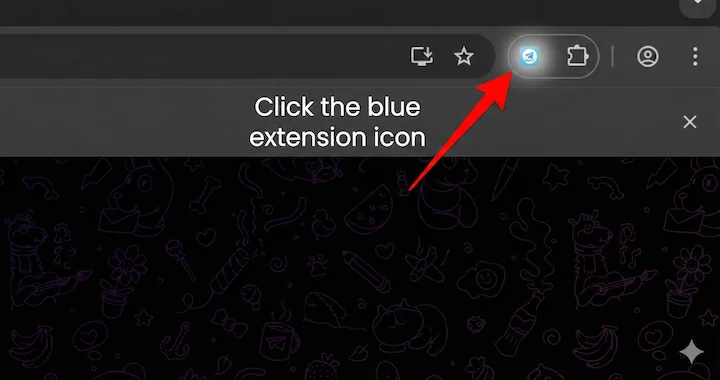
Click the browser toolbar to pin the extension icon for quick access
Tips:
- Click the puzzle icon (Extensions) in the toolbar
- Find "Telegram Media Downloader" in the list
- Click the pin icon to add it to your toolbar
3
Open Telegram Web
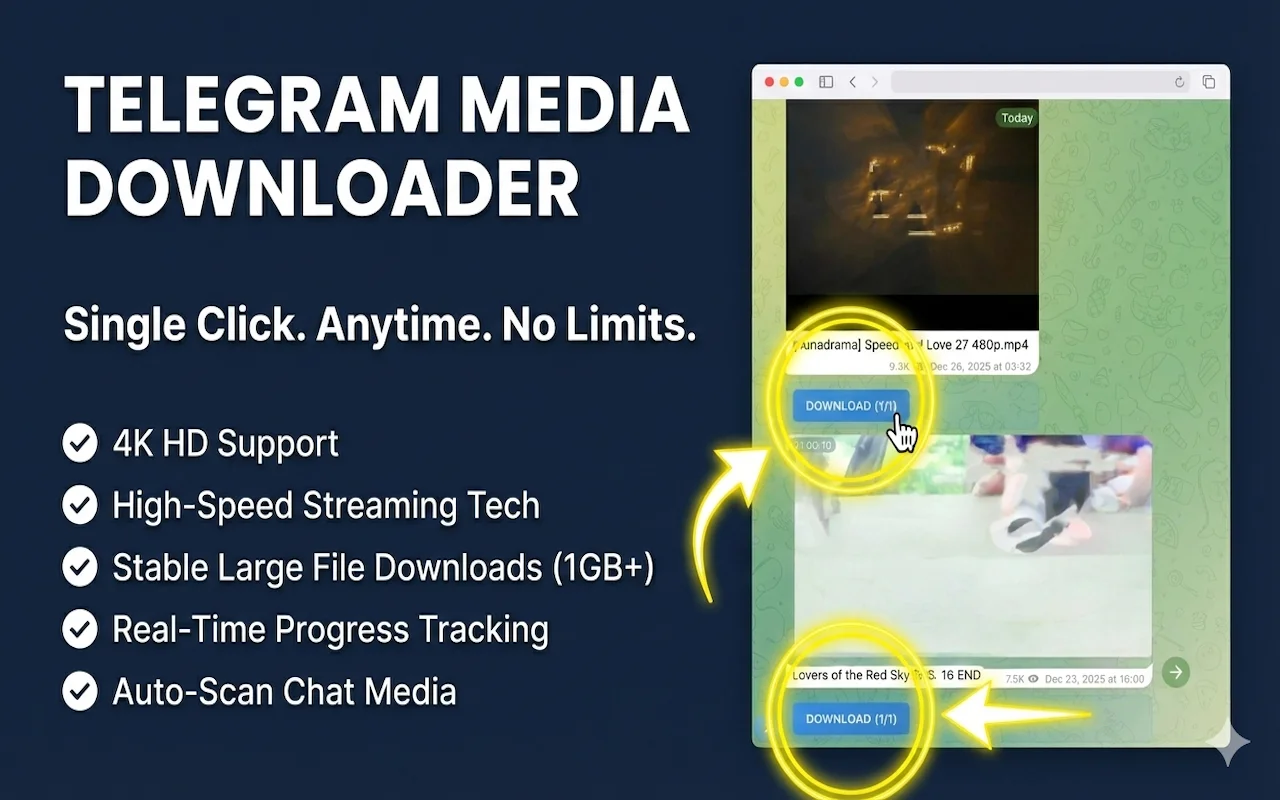
Visit web.telegram.org, the extension will automatically start scanning media resources
Tips:
- Go to web.telegram.org
- Login to your Telegram account
- Navigate to any channel or group
- The extension will automatically scan for media
4
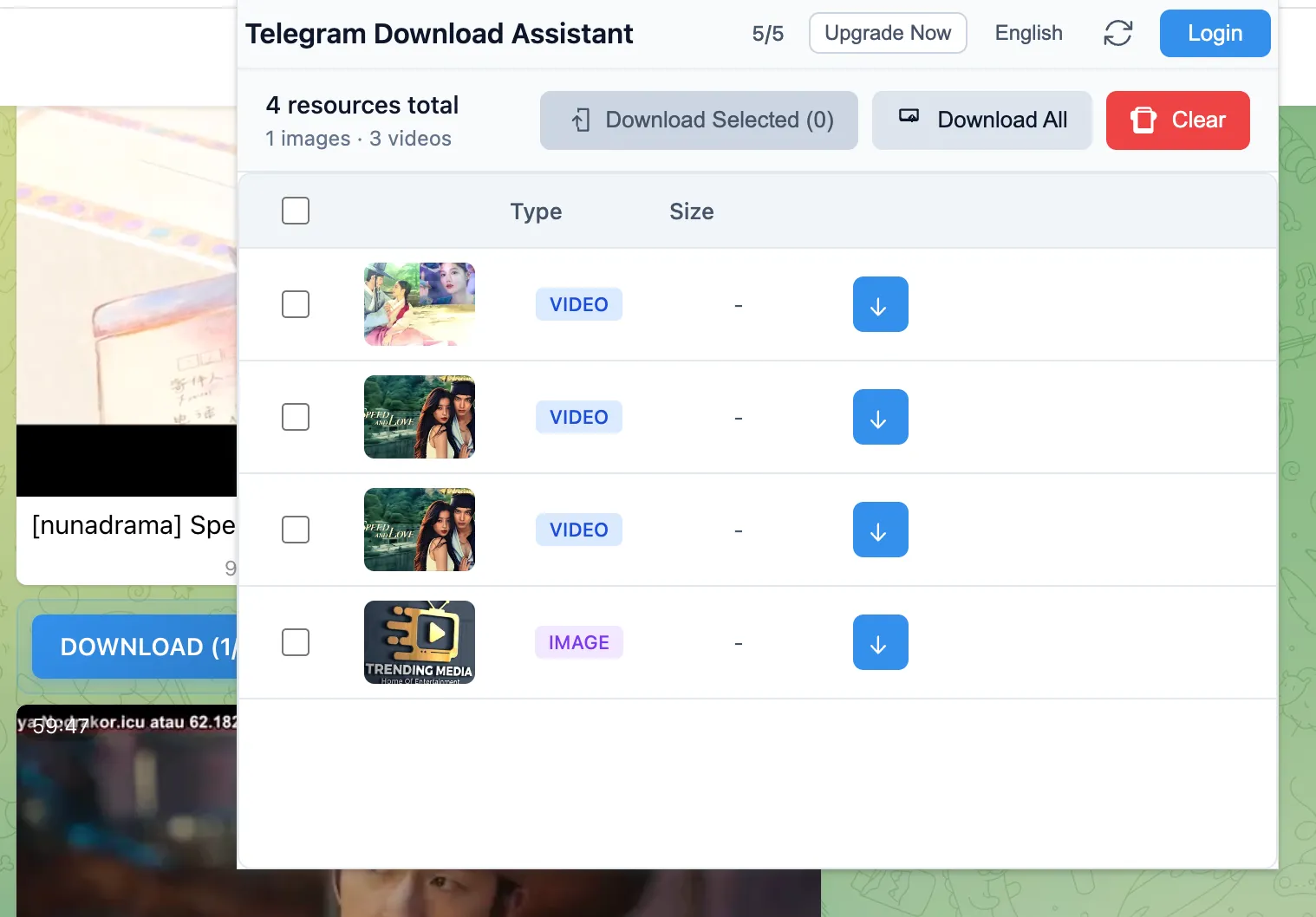
Batch Download
Select files to download and click the download button to save them locally
Tips:
- Click the extension icon to see detected resources
- Select files you want to download
- Click the download button
- Files will be saved to your default download folder
Troubleshooting
Extension not working
Make sure you have granted the necessary permissions. Try refreshing the Telegram Web page.
Resources not detected
Scroll through the chat to load more messages. The extension detects media as it appears on screen.
Download fails
Check your internet connection. Some large files may take longer to start downloading.
Need More Help?
If you're experiencing issues not covered here, please reach out to our support team.
Contact Support